


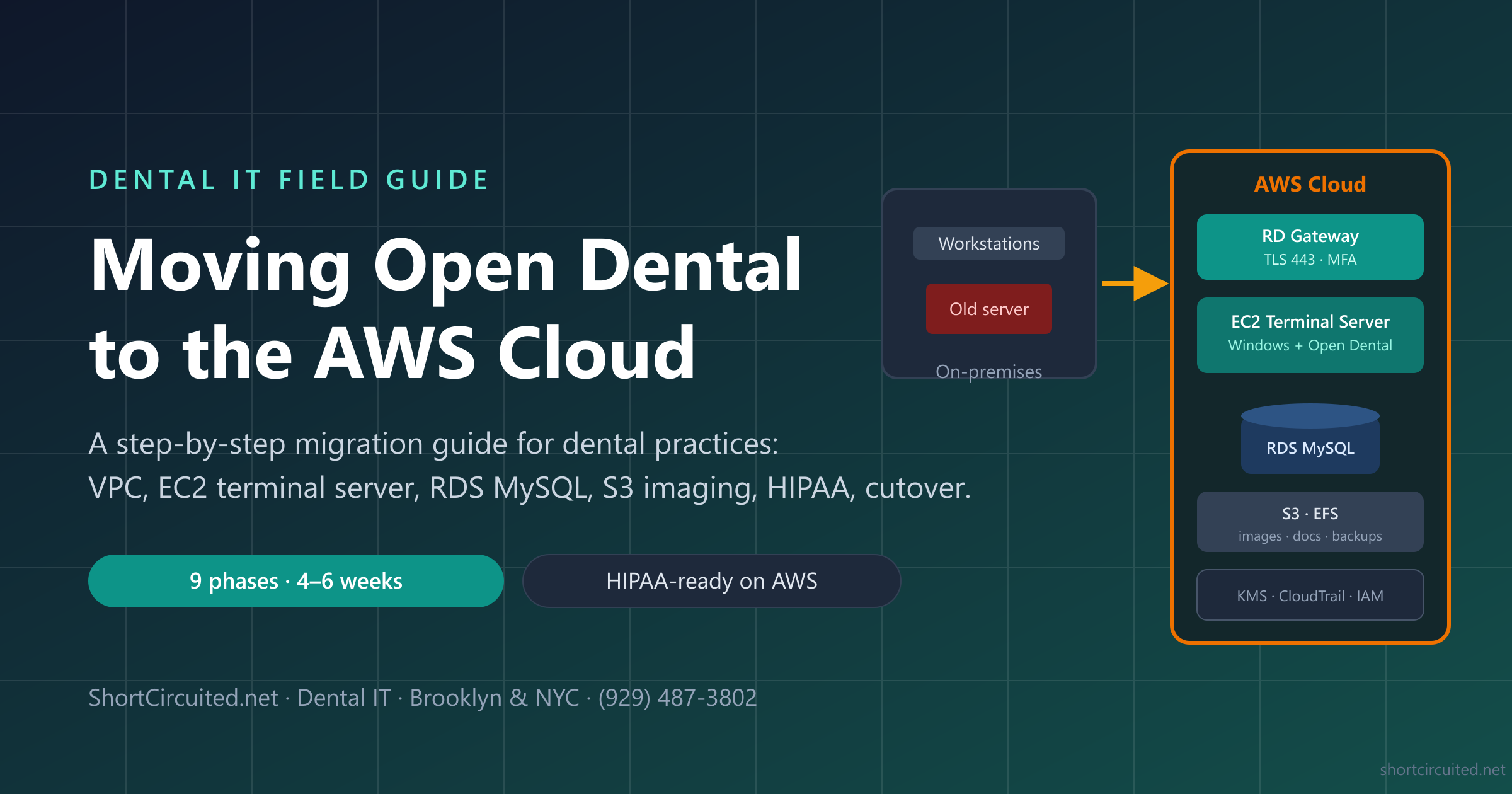
How to Move Open Dental to the AWS Cloud (Step-by-Step Guide)
Open Dental is the practice management system your whole office lives in — and for most practices it lives on one aging tower in a closet. Moving it to Amazon Web Services ends the single-point-of-failure era: the database gets automatic failover, backups stop depending on a USB drive, doctors can work from anywhere at full speed, and a flood or fire in the server closet becomes a non-event.
This is the guide we wish existed when we did our first AWS migration for a dental office. It is written for practice owners and IT people who want the real steps, the real commands, the real monthly cost, and the mistakes that make migrations fail — from a team that supports Open Dental offices around New York City for a living.
Disclosure: Short Circuited is an independent dental IT company. We are not affiliated with Open Dental, Inc. or Amazon Web Services. All AWS prices in this article are approximate (September 2026, us-east-1, on-demand) — always model your own build in the AWS Pricing Calculator.
Why move Open Dental to AWS at all?
The honest list of reasons practices actually pull the trigger:
- Multi-location and remote access. A second office, a doctor working charts from home, an owner checking the schedule from a conference — with a terminal-server design every site is equally "local."
- Disaster recovery that actually exists. RDS gives you synchronous standby replication and 21+ days of automated backups. Compare that to a nightly backup to a drive sitting in the same closet as the server.
- Hardware obsolescence ends. No more "the server is eight years old and the warranty ended three years ago" conversation. Underlying hardware is AWS's problem; you resize with a click.
- Security posture. Centralized, audited, encrypted infrastructure beats a workgroup server that every workstation in the building has drive mappings to.
- Predictable spend. A few hundred dollars a month replaces capex spikes, out-of-warranty emergencies, and the replace-the-server-every- five-years budget line.
And when not to do it: if you are a single-location practice with a healthy server, solid backups, no remote-access ambitions, and no appetite for a monthly platform cost, a well-built on-premises server is still a perfectly good answer. Cloud is a tool, not a religion. Read our honest local server vs. cloud comparison before deciding.
How Open Dental Is Built: What You're Actually Moving
You cannot migrate what you don't understand, so ten minutes of architecture first. Open Dental is a Windows client/server application made of five moving parts:
- The MySQL database — the entire practice: patients, appointments, claims, charting. This is the crown jewel and the hardest part to move safely.
- The Open Dental client program — what staff click. It is a "chatty" desktop app that fires many small queries at MySQL and expects LAN-level latency (a screen can trigger dozens to hundreds of round trips).
- The Images "A" folder — X-rays, photos, scanned forms and attachments. Usually thousands of files on a network share, commonly 50–500 GB.
- The eConnector — Open Dental's middleware service that connects the database to Open Dental HQ for eServices: text messaging, patient portal, web scheduling, confirmations. If it's not running somewhere with database access, those features silently die.
- Third-party integrations — imaging (Dexis, Schick, Carestream), bridges to CAD/CAM and sensors, payment processors. Each one has its own opinion about being in the cloud.
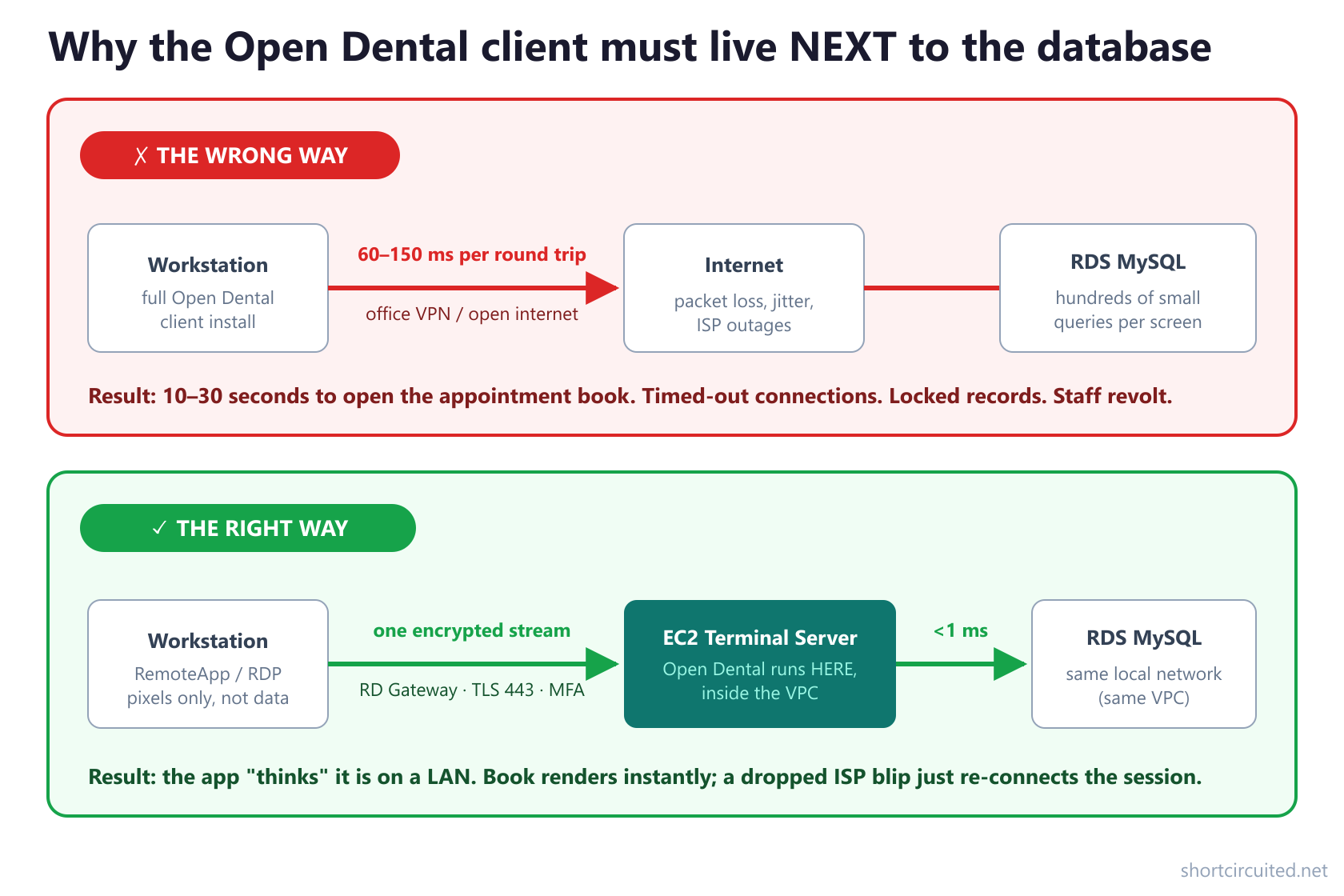
The single most important consequence: you cannot just lift the database into the cloud and install the client on workstations pointing at it over the internet. That is the migration-killing mistake, and it deserves its own diagram.
Your Four Hosting Options (and Why a Terminal Server Wins)
Every "Open Dental in the cloud" conversation is really a choice among four designs:
| Option | What it is | Reality check |
|---|---|---|
| Open Dental HQ hosting / partners | Open Dental's own hosted arrangements and partner hosting companies | Legitimate and low-effort, priced per user/clinic with less control over the infrastructure. Worth pricing against your own AWS build. |
| Lift-and-shift client + VPN | Database in the cloud, Open Dental client on workstations over a VPN | Rejected. The chatty client across a WAN makes the appointment book take 10–30 seconds per click. This is the #1 way cloud migrations fail and get rolled back. |
| VDI (AWS WorkSpaces) | Individual persistent virtual desktops per staff member | Works, but costs more than a shared terminal server for the same result, and per-user management multiplies. Better for larger enterprises than a single practice. |
| AWS terminal server + RDS (recommended) | One Windows Remote Desktop Session Host runs Open Dental next to RDS MySQL; workstations display a remote session | Full LAN speed for every site, one server to patch, cheapest correct design, scales from 2 to 20+ users. The rest of this guide builds exactly this. |
The Target Architecture on AWS
Here is the complete build we deploy for practices, all in a single AWS region (for New York practices, us-east-1 in N. Virginia is the natural choice — closest, and the cheapest region).
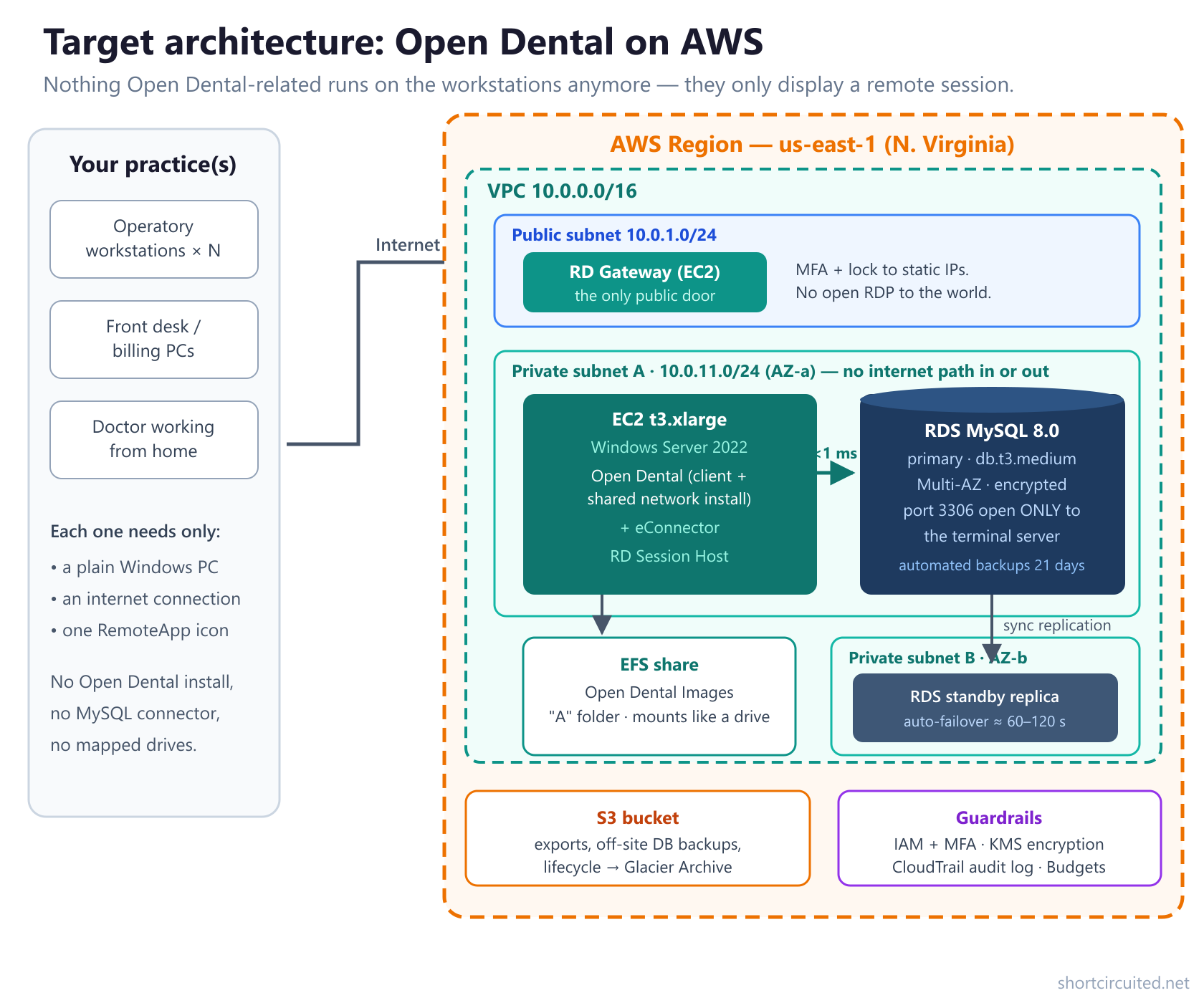
The cast of characters:
| Component | Sizing for a 4–10 chair practice | Why |
|---|---|---|
| VPC / subnets | 10.0.0.0/16 · 1 public, 2 private across two AZs | Multi-AZ keeps you alive through an AWS data-center failure |
| RD Gateway | EC2 t3.small, Windows Server, or the same box as the terminal server for tiny offices | TLS on 443 + MFA; RDP is never exposed to the internet |
| Terminal server | EC2 t3.xlarge (4 vCPU / 16 GB), Windows Server 2022, 100 GB gp3 | Runs Open Dental, the eConnector, and the RD Session Host role |
| Database | RDS MySQL 8.0, db.t3.medium, Multi-AZ, 100 GB gp3, encrypted, 21-day backups | Managed patching, snapshots, standby failover in ~60–120 seconds |
| Images storage | EFS share (or S3 on newer Open Dental versions) | Behaves like the network share you have today |
| Guardrails | IAM + MFA, KMS encryption, CloudTrail, Budgets | The HIPAA and cost-control layer |
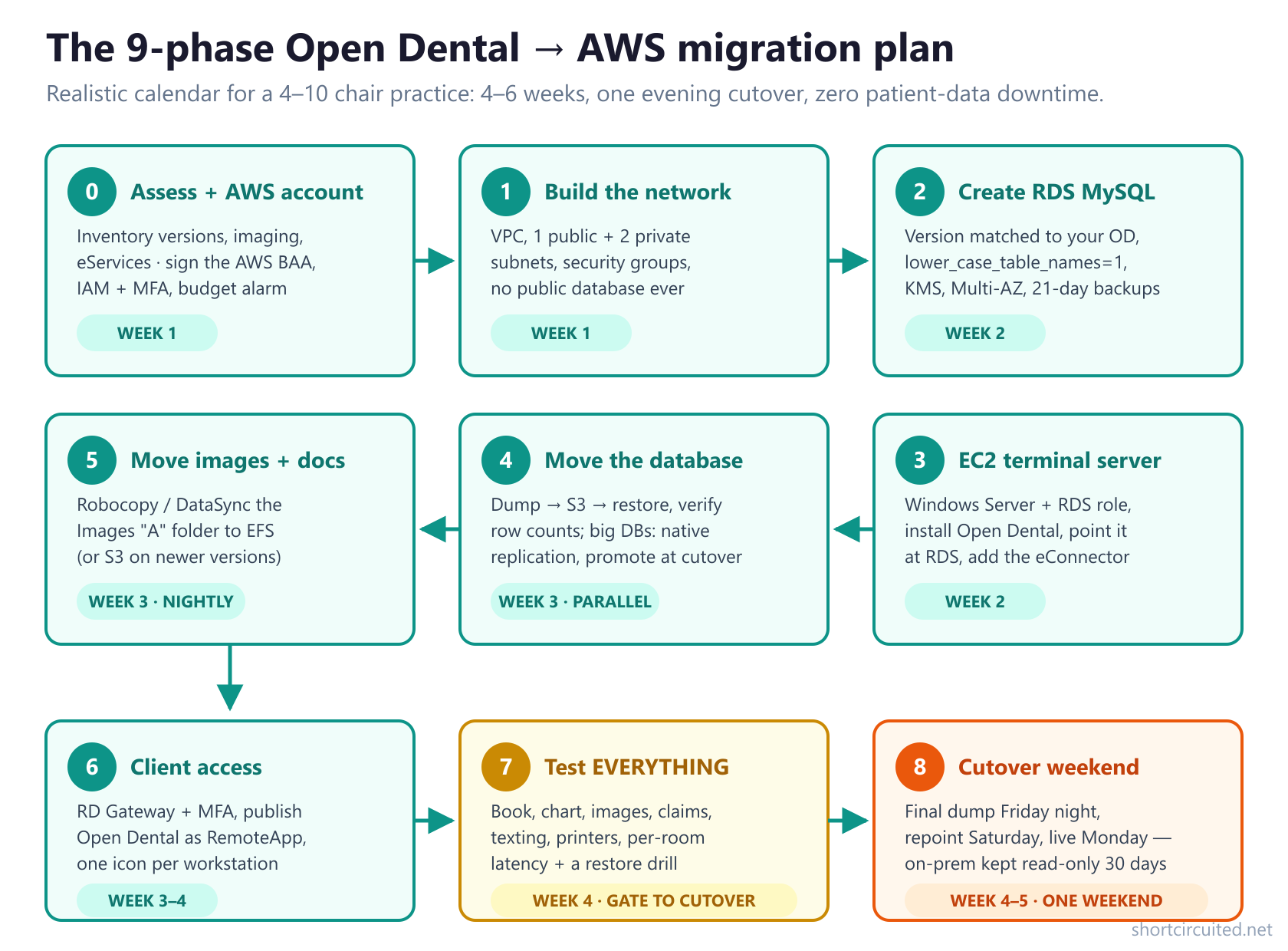
The build runs in nine phases over four to six weeks. Here is the whole plan at a glance — each phase gets its detailed section below:
Phase 0: Pre-Migration Checklist (Week 1)
Every failed migration we've been called in to rescue skipped this phase. Before you touch AWS, write down:
- Your Open Dental version (Help menu → About) and your MySQL version (on the server:
mysql -u root -p -e "SELECT VERSION();"). Both matter in Phase 2. - Database size: most practices land between 2 and 30 GB. If yours is 100+ GB, plan the replication variant in Phase 4.
- Images folder size and path (File → Pictures, or check the data path in Setup). Usually the biggest chunk of data.
- Imaging inventory: every sensor, pano, CBCT, and the workstation each one is hard-tied to. This decides your hybrid design — see the sensors FAQ below.
- eServices inventory: which of texting, web scheduling, patient portal, and confirmations are active. All of them ride on the eConnector.
- Integration inventory: bridges to CAD/CAM, payment terminals, statement services, clearinghouses, and the workstation each depends on.
- Workstation and printer inventory, including card scanners and receipt printers (both are RDP-redirection candidates).
Then set up the AWS account properly, because this account will hold PHI:
- Create the account; turn on MFA on the root user and then never use root again — create an IAM administrator user instead.
- Set region us-east-1 (N. Virginia) for New York-area practices.
- Sign the Business Associate Agreement through AWS Artifact — it's a self-service click-through, it's free, and you do it before any patient data exists in the account.
- Create a Budget alarm at your monthly ceiling (say $400) so a misconfiguration emails you instead of surprising you.
Phase 1: Build the Network — VPC, Subnets, Security Groups
In the VPC console, create a VPC 10.0.0.0/16 with an internet gateway, then three subnets:
| Subnet | CIDR | Availability Zone | Contains |
|---|---|---|---|
| public-a | 10.0.1.0/24 | us-east-1a | RD Gateway (and the terminal server in the single-box variant) |
| private-a | 10.0.11.0/24 | us-east-1a | Terminal server, RDS primary, EFS mount target |
| private-b | 10.0.12.0/24 | us-east-1b | RDS standby replica |
The public subnet's route table points at the internet gateway; the private subnets have no inbound path from the internet at all. If your terminal server lives in a private subnet it needs a NAT Gateway (about $35/month) for outbound access — the eConnector phones home to Open Dental HQ over HTTPS, so something must provide outbound internet. Small offices frequently run the leaner single-box variant (gateway + terminal server on one EC2 host in the public subnet) to skip the NAT cost; the security groups below still apply.
Then create the security groups. This table is the entire firewall policy, and it is deliberately boring:
| Security group | Inbound rule | Purpose |
|---|---|---|
| sg-gateway | TCP 443 from the office's static IPs (or 0.0.0.0/0 if staff work from home — MFA compensates) | The only thing reachable from the internet |
| sg-app | TCP 3389 from sg-gateway only · outbound 3306 to sg-db · outbound 443 anywhere · TCP 2049 to sg-efs | Terminal server: reachable only through the gateway |
| sg-db | TCP 3306 from sg-app only | The database is invisible to the internet. Public access: No. |
| sg-efs | TCP 2049 from sg-app only | Image share follows the same rule |
Phase 2: Create the RDS MySQL Database (Get These Settings Right)
Open Dental runs on MySQL (MariaDB also works on-premises; stick with MySQL on RDS). Current Open Dental versions support MySQL 5.7 and 8.0 — check the Open Dental manual entry for your version before choosing. The settings below are the ones that are expensive to get wrong:
- Create a parameter group first. RDS → Parameter groups → Create →
mysql8-od, familymysql8.0. Set:lower_case_table_names = 1andmax_allowed_packet = 1G. - Create the database: Engine "MySQL Community 8.0.x", template Production,
db.t3.medium, Multi-AZ deployment ON. - Assign the parameter group from step 1 at creation time. On MySQL 8.0,
lower_case_table_namescan only be set when the instance is created — your on-prem Windows MySQL almost certainly runs case-insensitive, and a dump restored without this setting is the classic "works on-prem, breaks on RDS" trap. If you miss it, you delete the instance and start over. - Storage: gp3, 100 GB, autoscale to 300 GB. More than enough headroom for the typical dental database.
- Connectivity: your VPC, private subnet group (private-a + private-b), security group sg-db, Public access: No, initial database name
opendental. - Encryption: enable with a KMS key at creation (you cannot encrypt an unencrypted RDS instance in place later).
- Backups: automated, retention 21 days (up to 35 is allowed — it's cheap insurance). Deletion protection: ON. Maintenance window: Sunday early morning.
- Note the endpoint, e.g.
opendental.abc123xyz.us-east-1.rds.amazonaws.com— that hostname is the database's entire identity in every step that follows.
Phase 3: Build the EC2 Terminal Server and Install Open Dental
- Launch the instance: Windows Server 2022 Base AMI,
t3.xlarge, 100 GB gp3 root volume, your VPC (public subnet for the single-box variant, private-a otherwise), sg-app security group. Allocate and attach an Elastic IP so the address survives reboots. - Add the Remote Desktop Services role (Server Manager → Add Roles and Features → Remote Desktop Services → Quick Start → Session deployment) and publish a session collection.
- License it honestly: beyond the 120-day grace period, Windows requires RDS Client Access Licenses (per user). They run roughly $120–$180 per user retail — budget it from day one.
- Install Open Dental from the customer portal installer. During setup, point it at the RDS endpoint with a dedicated MySQL login you created for the app (keep the RDS master password for administration, not for daily use).
- Install the eConnector on this same server (it needs database line-of-sight, and here it has it). Open Dental → Setup → eServices should show everything green. Texting, web scheduling, the patient portal, and confirmations all depend on this.
- Mount EFS (Phase 5) and set the Images data path to it so images never live on the C: drive of a server you might resize.
- Snapshot here. Create an AMI of the configured server before user testing starts — it's your 20-minute rebuild button.
Phase 4: Migrate the Open Dental Database
For a typical sub-30 GB database, a maintenance-window dump-and-restore is simple, safe, and fast (a 20 GB dump restores in tens of minutes). The office keeps working on-prem while the AWS build runs in parallel; you do the final delta at cutover.
On the on-premises server (after hours, with Open Dental idle — the --single-transaction flag gives a consistent snapshot of InnoDB tables without blocking the office):
mysqldump -h 127.0.0.1 -P 3306 -u root -p --single-transaction --triggers --routines --databases opendental > C:\Temp\opendental_full.sqlInstall the AWS CLI on the server and upload the dump (encrypted bucket, private by default):
aws s3 cp C:\Temp\opendental_full.sql s3://sc-opendental-migration/And restore into RDS from the terminal server:
aws s3 cp s3://sc-opendental-migration/opendental_full.sql C:\Temp\
mysql -h opendental.abc123xyz.us-east-1.rds.amazonaws.com -P 3306 -u odadmin -p < C:\Temp\opendental_full.sql
Now prove the restore, don't eyeball it — compare against the same queries run on-premises:
SELECT COUNT(*) FROM patient;
SELECT COUNT(*) FROM appointment;
SELECT COUNT(*) FROM procedurelog;
SELECT COUNT(*) FROM claim;
SELECT PatNum, LName, FName FROM patient ORDER BY PatNum DESC LIMIT 5;--source-data, restore into RDS, then CALL mysql.rds_set_external_source(...) and CALL mysql.rds_start_replication;. The cloud copy stays seconds behind until you stop replication at cutover. It requires the on-prem server to be reachable from AWS (DDNS + firewall pinhole or a Site-to-Site VPN), and for most practices the weekend dump is the better cost/benefit — but it's good to know the option exists.Phase 5: Migrate Images and Documents (the "A" Folder)
Create the EFS file system with a mount target in private-a, sg-efs allowing 2049 from sg-app only. On the terminal server, mount it (Windows NFS client) and give Open Dental the path in Setup → Data Path. Then migrate the Images share with robocopy — run a first full pass in the evening, then nightly deltas, so the final cutover copy is minutes, not hours:
robocopy "E:\OpenDentImages" "Z:\OpenDentImages" /MIR /COPY:DAT /DCOPY:DAT /R:2 /W:5 /MT:16 /LOG:C:\Temp\images-migration.logNewer Open Dental versions can also store the Images folder directly in S3 (check your version's manual — it's the more cloud-native option and makes the terminal server disposable). If you use it, aws s3 sync replaces robocopy and lifecycle policies can age old attachments into cold storage automatically.
Phase 6: Client Access — RD Gateway, RemoteApp, and Workstations
- RD Gateway role on the gateway EC2 (or the single box): give it a real hostname (
remote.yourpractice.com) and a trusted certificate (Let's Encrypt via Certify The Web is fine). RAP/CAP policies allow only the terminal server's session host. - Add MFA. Even simple TOTP MFA on the gateway turns stolen passwords into a non-event. This is a PHI system; do it.
- Publish Open Dental as a RemoteApp so staff get a single "Open Dental" icon that launches the program fullscreen — not a whole Windows desktop they can wander around in.
- Workstations: deploy the RemoteApp icon to each operatory PC. No installs, no MySQL connectors, no mapped drives. An eight-year-old front-desk tower becomes perfectly adequate because it's only painting pixels.
- Peripherals: printers redirect automatically via Easy Print; test receipt printers, card scanners, and signature pads early — each is usually a one-setting fix, but you want to find that out in Phase 7, not on Monday.
Phase 7: The Pre-Cutover Testing Checklist
Run this end-to-end on the AWS build with people from each role. Every unchecked box is a Monday surprise.
| Area | Test | Pass looks like |
|---|---|---|
| Appointment book | Create, move, double-book, pinboard | Renders in under 2 seconds from the slowest operatory |
| Charting | Paint treatment, existing, completed work; perios | Instant, no spinner |
| Imaging | Open X-rays from the A folder; capture via your bridge | Images open full-speed; capture behaves as designed |
| Ledger + claims | Enter payment, create and send a test claim | Clearinghouse accepts; no timeouts |
| eServices | Send a test text and confirmation | eConnector green; message actually arrives |
| Reports | Month-end production report, aging | Completes without freezing other users |
| Printers | Print from each room to its default printer | Right printer, no "redirected" soup |
| Recovery | Restore latest RDS snapshot to a clone; open it | You have now actually tested your backup |
| Failover | (Optional, do once) reboot the RDS primary | Standby promotes; clients reconnect in ~2 minutes |
Phase 8: Cutover Weekend Runbook
Pick a weekend before a light Monday. Print this. Assign one owner per line. The full timeline as a diagram:
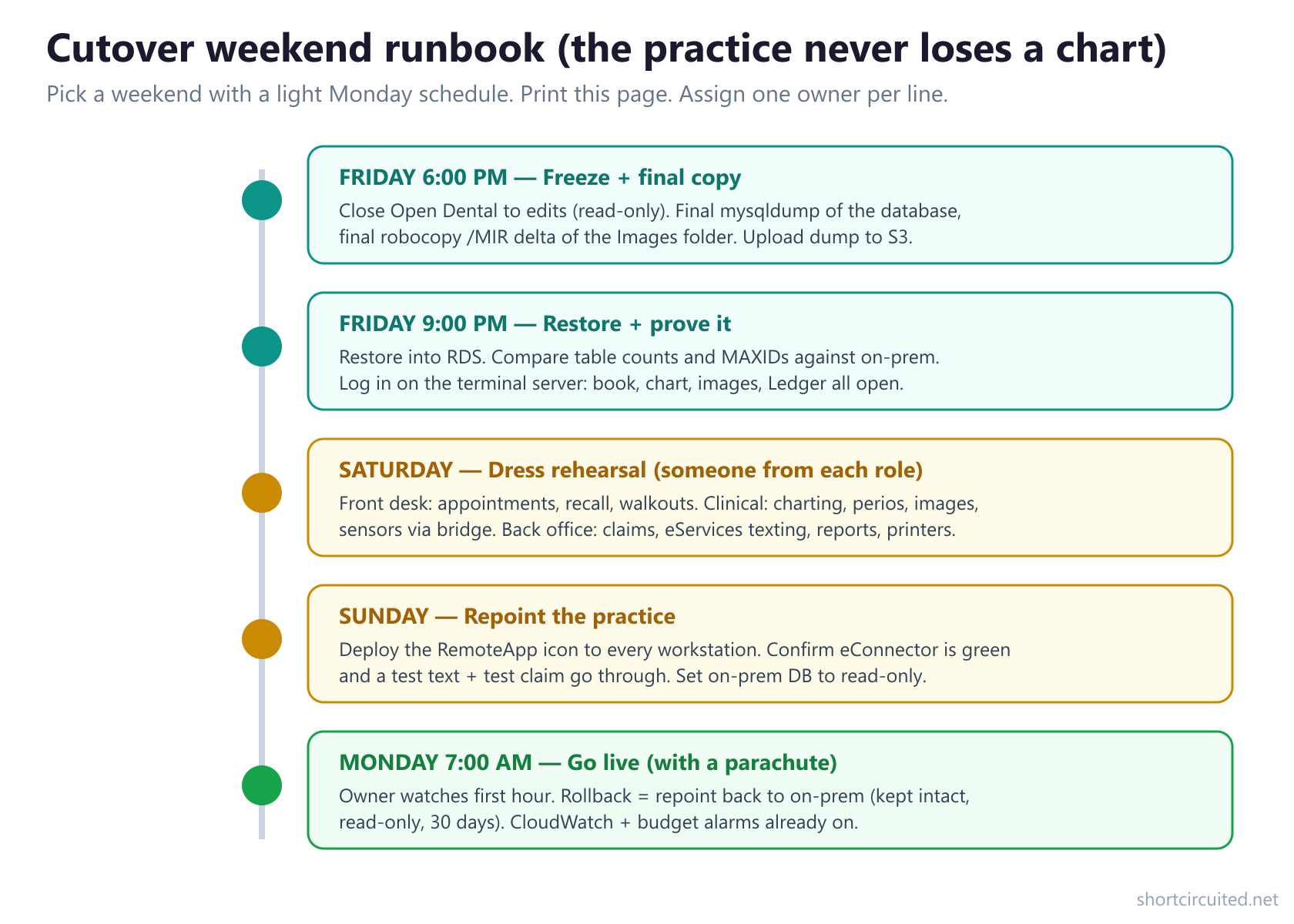
The rollback story is what makes this low-risk: the on-premises server is left powered on with its database set to read-only. If anything unexpected appears on Monday, repointing the practice to on-prem is a 10-minute conversation, not a disaster. You decommission it 30 days later, when the cloud build has earned trust.
Phase 9: The First 30 Days After Migration
- Watch CloudWatch for a week: terminal server CPU, RDS connections, free storage. Resize once, calmly, from data instead of guesswork.
- Verify snapshots daily for the first two weeks — the migration isn't done until the backup rhythm is proven.
- Test your upgrade procedure: future Open Dental version upgrades get tested on a snapshot clone first, then applied. You'll never again upgrade production on a prayer.
- Review the bill at day 30, right-size, and then evaluate a 1-year or 3-year savings plan (that's the 30–40% discount moment).
- Only then wipe and repurpose the on-premises server.
What It Really Costs to Host Open Dental on AWS
Here's the honest, no-salesperson math for a 6-chair practice on on-demand pricing in us-east-1:
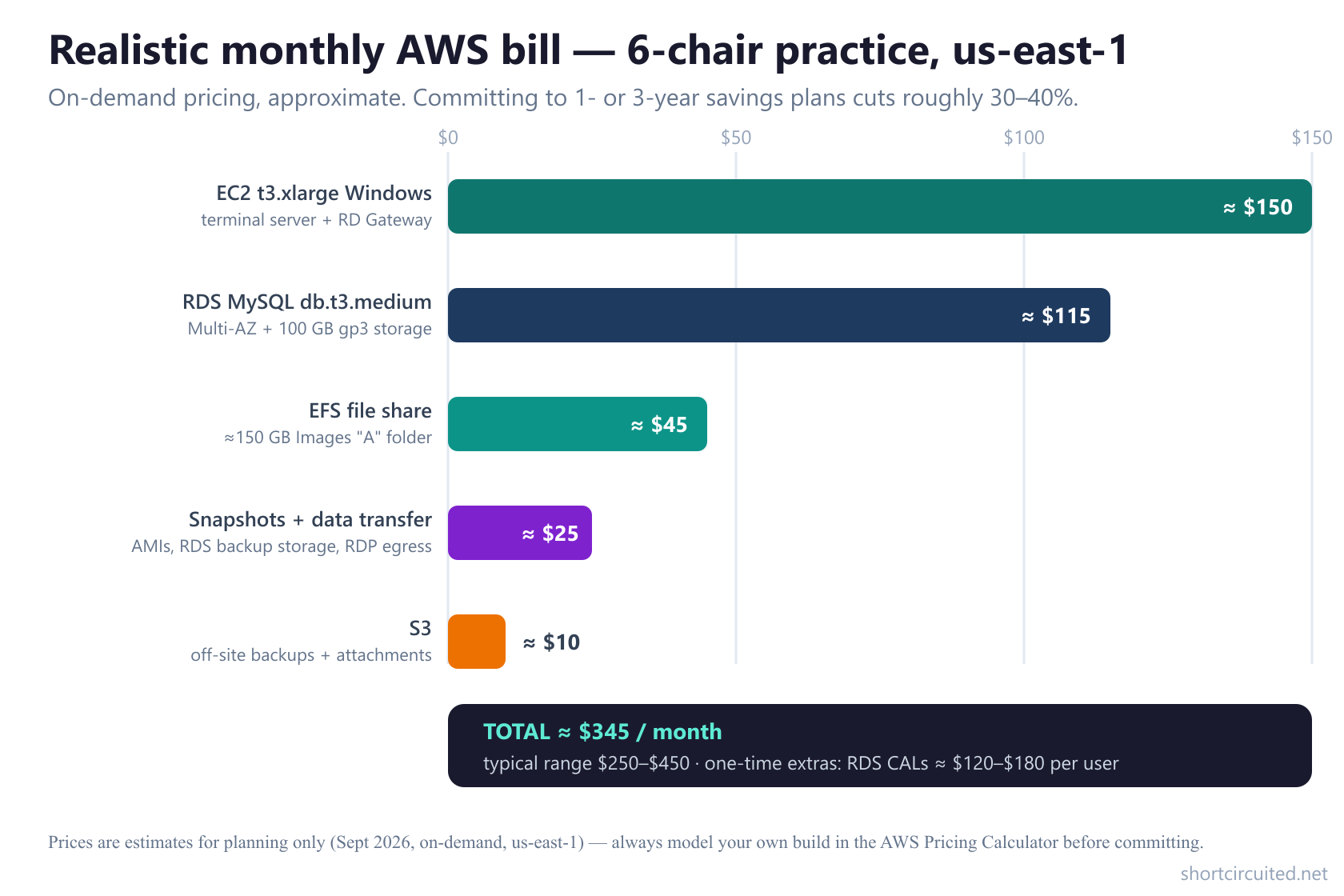
Things that move the number:
- NAT Gateway (+≈$35/month) if your terminal server sits in a private subnet — the single-box variant avoids it.
- Savings plans (1- or 3-year commitment) cut EC2 and RDS roughly 30–40% once the build is stable.
- RDS CALs (≈$120–$180 per user) are one-time, not monthly, and are Microsoft's licensing, not AWS's.
- Your time is the biggest line item of all for a DIY migration — see the last section.
For context, hosted Open Dental arrangements through partners typically price per user per month and land in a similar or higher annual total with less control. Your own AWS build is usually the cheaper path at 4+ seats — and it's yours.
HIPAA Compliance on AWS: What Actually Matters
"The cloud is HIPAA compliant" is a category error — platforms are HIPAA-eligible, compliance comes from configuration. The parts that matter for this build:
- The BAA. Sign AWS's Business Associate Agreement via AWS Artifact before patient data arrives. Without it, you have no agreement covering PHI on AWS — full stop.
- Encryption at rest on everything: RDS (KMS), EBS volumes, EFS, S3. It's a checkbox at creation time for each service — and retroactive for none of them.
- Encryption in transit: TLS on the gateway, and the database is only ever reachable inside the VPC.
- IAM hygiene: MFA on every human, no shared accounts, root user locked away, programmatic keys rotated.
- Audit trail: CloudTrail records every API call in the account — who touched what, when. Keep it on forever; it's cheap.
- The boring 80%: your risk analysis, staff training, workstation policies, and sanction policy still apply exactly as they did on-premises. AWS replaces a closet server, not your compliance program. If your compliance program is a closet server, start with our HIPAA compliance workup.
Backup discipline completes the picture — snapshots, an S3 copy you control, and quarterly restore drills. We break the full strategy down in our backup and disaster recovery guide.
The Failure Modes We See Most (Learn From Other Offices)
- Client-over-VPN design. "It works, it's just slow" — every screen 10–30 seconds, staff mutiny, rollback. Fixed by the terminal-server design this guide is built around.
lower_case_table_namesmissed on MySQL 8.0. Dump restores fine, Open Dental errors on startup. The instance must be recreated with the parameter group set at creation. It's a five-minute fix if you catch it on day one of the build and a painful one after go-live.- Sensors that can't redirect. The imaging inventory from Phase 0 exists precisely so this is a design decision, not a discovery during the dress rehearsal.
- eConnector left behind or offline. Texting and confirmations quietly stop the week after go-live. Install it on the terminal server and check it in every Phase 7 test.
- No MFA + open security groups. An RDP port open to the internet with password-only auth will be brute-forced. 443 + MFA or bust.
- Untested restores. Snapshots exist, nobody has ever restored one, and the first restore attempt happens during an outage. Phase 7's recovery test is not optional.
- Single ISP. The cloud is fine; the office's one cable modem is not. Dual-WAN failover is standard equipment for a cloud practice.
- Bill surprise. A forgotten NAT Gateway processing charge or an oversized instance. The Phase 9 cost review exists so the number lands where you expect it.
When to Hand This to a Dental IT Company
Straight answer: if nobody on your team has run MySQL in production, built a VPC, or survived a Windows RDS deployment, this is a three-to-six-week specialist project, not a weekend. The migration itself is maybe 20% of the work — the other 80% is the inventory, the imaging design, the testing discipline, and the HIPAA controls around it. DIY is genuinely viable for a technical owner; it is also how the failure modes above get their rehearsals.
We do this for dental offices in NYC and beyond — including the parts cloud migrations keep bumping into: server and network design, imaging integration, backup strategy, and managed care after go-live through our monthly dental IT plans. And if you're weighing AWS against moving off Open Dental entirely, read our Open Dental switch-over guide or the sibling Eaglesoft server migration walkthrough.
Frequently Asked Questions
Can staff run Open Dental from home or a second office over a VPN?
Not the full Open Dental client. The program talks to MySQL with many small queries, and across a WAN each one costs 60–150 ms, so screens take 10–30 seconds to load. The supported-feeling remote pattern is a RemoteApp/RDP session into a terminal server that sits next to the database. With that design, a doctor at home gets the same speed as the operatory.
Is hosting Open Dental on AWS HIPAA compliant?
AWS can be used HIPAA-compliantly, but the platform is not compliant by default. You sign the AWS Business Associate Agreement through AWS Artifact, use HIPAA-eligible services (EC2, RDS, S3, EFS, EBS), enable encryption at rest and in transit, lock down IAM with MFA, and turn on CloudTrail auditing. The BAA covers AWS; your configuration is your responsibility.
Does Open Dental support being hosted on AWS?
Open Dental supports the application and its supported MySQL versions; the infrastructure underneath is supported by whoever runs it — you or your IT company. Open Dental also offers its own hosted/partner arrangements. Run your build past Open Dental support before cutover, especially if you use eServices, so nothing falls outside anyone’s support boundary.
How long does an Open Dental AWS migration take?
Four to six weeks calendar time for a typical 4–10 chair practice, with a single weekend cutover. Most of that is parallel-run time: the AWS build is tested for a week or more while the office keeps working on the on-premises server.
How much does AWS cost per month for Open Dental?
A realistic all-in figure for a small practice is $250–$450 per month on on-demand pricing (terminal server, RDS MySQL Multi-AZ, image storage, snapshots, transfer), roughly $345 in the middle. Committing to 1- or 3-year savings plans cuts about 30–40%. One-time extras: Windows RDS client access licenses, roughly $120–$180 per user.
Will my Dexis or other X-ray sensors work in the cloud?
This is the number-one blocker. Most sensors are USB devices that connect to a capture workstation on the LAN, and many imaging applications do not work through remote desktop redirection. Practices commonly keep a hybrid design: one or two on-premises capture stations that shoot images into the cloud-hosted database, or a sensor that officially supports bridge/TWAIN redirection. Inventory your imaging in Phase 0 before you commit to anything.
Can we use the AWS Free Tier for a production Open Dental server?
No. The Windows terminal server and RDS instance a real practice needs are not free-eligible at production size, and PHI workloads should never run on throwaway infrastructure. Budget properly — the monthly figure above is the honest number.
What happens if the office internet goes down?
With a cloud-hosted database, a dead WAN means nobody can chart until connectivity returns, so dual-WAN failover (cable + fiber/LTE) is standard equipment for a cloud practice. Compare that to your current risk: a dead on-prem server also idles the office, but only someone on-site can fix it. Different failure, similar stakes — plan for both.
Do we still need local backups after moving to AWS?
Yes. RDS automated backups and snapshots plus S3 give you strong cloud-side recovery, but a 3-2-1 strategy still ends with an off-site copy you control: export encrypted dumps to S3 with lifecycle to Glacier, and test restores quarterly. A backup you have never restored is a hope, not a backup.
Moving Open Dental to AWS? Talk to Us First
A 20-minute call with our dental IT team will tell you whether your practice is a good cloud candidate, what your imaging situation really allows, and a realistic quote for the whole job — migration, security hardening, and the monthly plan afterward. We've been keeping Brooklyn and NYC dental offices running since 2003.
- Call (929) 487-3802 or send us a message
- Email dental@shortcircuited.net
- Read next: Why hackers are targeting dental offices and our dental ransomware recovery playbook